

Channel Organization
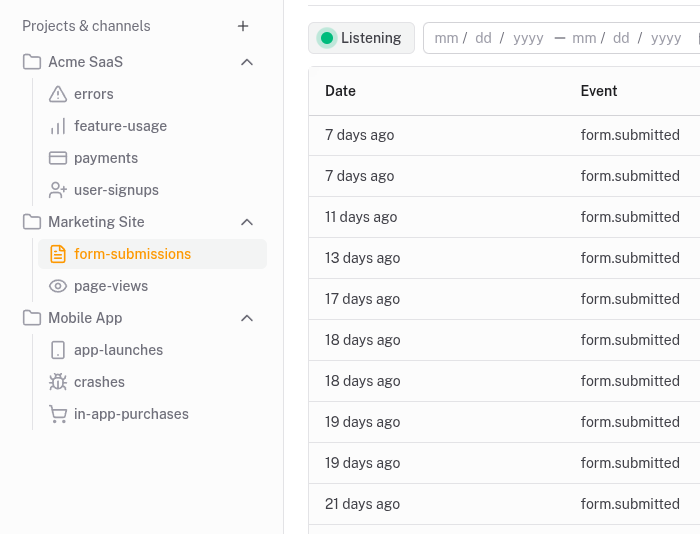
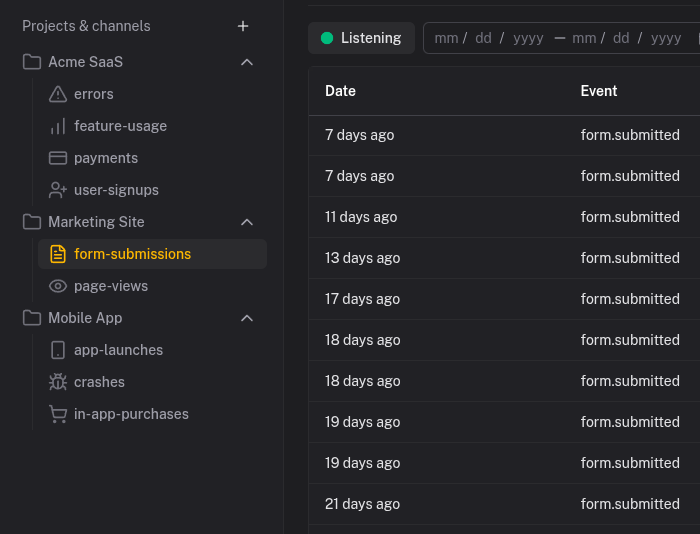
Group events into channels like signups, payments, and deployments. Works like Slack - click a channel to see only those events.
How it works
Each channel is a named container for a specific type of event. When you send an event, you specify which channel it belongs to. Channels appear in your sidebar - click one to filter.
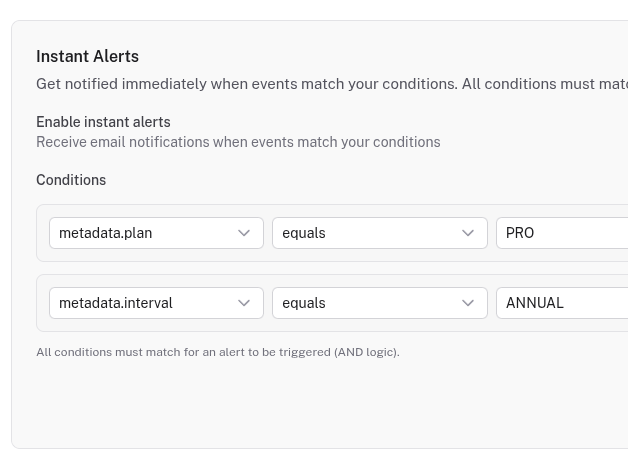
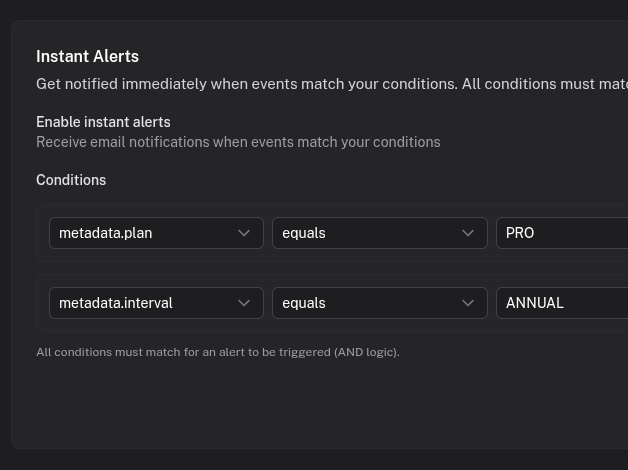
Each channel can have its own icon for quick visual recognition. Notification settings are per-channel, so marketing can get instant alerts for signups while developers get daily digests for deployments.
What you get
- Unlimited channels per project
- Sidebar navigation like Slack
- Custom icons for quick visual identification
- Per-channel notifications with independent settings
- Filtered views to focus on one event type at a time
- Channel archiving to hide old channels without losing data
Common channel setups
SaaS product
signups, payments, cancellations, errors. Add upgrades and feature-usage as you grow.
Developer tools
deployments for CI/CD events, webhooks for debugging integrations, api-errors for tracking issues.
Launch campaigns
A waitlist channel for pre-launch, a conversions channel when you launch. Archive the waitlist afterward.
Better structure makes better analytics
Channel design has a direct impact on analysis quality. When events are organized by real business workflows, teams can inspect trends without digging through noise. This is where many saas analytics tools fail: they capture everything but make it hard to navigate.
Quicklog keeps channels human-readable and easy to filter, which improves both reporting and day-to-day collaboration. A clear structure also supports analytical crm practices, because support and success teams can quickly find the exact sequence of events behind a customer question.
Try it out
Create channels that match how your team thinks.